 |
||
| ||
| |||||
 | |
|---|---|
| Auteur | Sujet : [TU] Lenovo Thinkpad X, T, R, W |
 neototem ça va passer ! | Posté le 19-02-2026 à 19:30:31   Reprise du message précédent : --------------- mes ventes mes AV divers |
Publicité | Posté le 19-02-2026 à 19:30:31 |
pascaldeuxzero It's a gift and a curse. | Posté le 03-03-2026 à 20:21:45 Mon fingerprint scanner n'est soudainement plus disponible au login avec Windows 11 sur mon T14. Windows me dit que mon lecteur d'empreinte n'est pas compatible avec la sécurité de connexion renforcée (ESS).
|
PierrotLeDingue Yes we KANTE ! | Posté le 05-03-2026 à 14:38:56
|
neototem ça va passer ! | Posté le 05-03-2026 à 19:09:27 j'avoue que je n’ai pas vérifié à l'achat, je viens de le faire, et il semble que mon L14 n'a qu'un emplacement SSD j'ai eu l'occasion de trouver que le bruit que j'avaos signalé est lié au ventilo : Message édité par neototem le 05-03-2026 à 19:12:19 --------------- mes ventes mes AV divers |
grant_lee | Posté le 06-03-2026 à 21:53:45 Une sorte de retour aux sources du thinkpad : https://www.minimachines.net/actu/l [...] n-7-139895 --------------- Mes ventes et dons divers |
 naldo | Posté le 07-03-2026 à 10:01:42 Qu'est ce qui rend le prix plus élevé ? La conception des pièces ? L'ingénierie ? L'assemblage ? |
neototem ça va passer ! | Posté le 07-03-2026 à 11:57:09 rien que le fait de prévoir plusieurs pièces à assembler, au lieu d'une seule carte mère avec tous les connecteurs soudés (plus de pièces à gérer, l'assemblage est plus complexe...) --------------- mes ventes mes AV divers |
FRACTAL | Posté le 07-03-2026 à 13:00:06 Je connaissais pas ce truc de ram Mais super nouvelle , surtout coté ram , qui justement était soudée sur pas mal de modèles... |
Eric B | Posté le 11-03-2026 à 11:46:57
Les tests ont montré que l approche RAM intégrée était + efficiente (meilleure autonomie de la batterie) et donc rapprochait l archi x86 de ARM et des Apple Silicon. Avec la Gen7, on regagne la flexibilité de changer la RAM. Le besoin en RAM m'a semblé atteindre un plafond ces dernières années: 16 Go est assez standard depuis ~10 ans, et 32 Go sur un nouveau produit semblait promettre de la tranquillité pour des années et devenait le standard. Les LunarLake se vendaient surtout en 32Go. C est justement cette explosion des prix qui justifie vraiment la possibilité de changer les modules RAM: le T14 Gen7 sera vendu avec 16Go ou 32Go, mais avec la promesse de passer à 64 Go dans qques années... J'ai longuement hésité à prendre le T14s Gen6 LunarLake 32Go qui me semble tjs un bon compromis, surtout que PantherLake ne fait pas mieux d'après les 1ers tests. Les prix ont toutefois aussi grimpé ces derniers mois. Message édité par Eric B le 11-03-2026 à 11:49:42 |
pascaldeuxzero It's a gift and a curse. | Posté le 13-03-2026 à 14:09:35
|
Publicité | Posté le 13-03-2026 à 14:09:35 |
matchat | Posté le 13-03-2026 à 20:35:01
|
oucra | Posté le 17-03-2026 à 21:38:23
|
Eric B | Posté le 23-03-2026 à 16:31:33 Je parlais au dessus de X1 gen9 autour de 600€. Mais sans doute pas assez pour la 3d. |
mxpx ---- | Posté le 01-04-2026 à 16:36:42 bon, j'avais un lenovo legion. jusqu'a 14h |
grant_lee | Posté le 14-04-2026 à 07:38:51 Essaie de débrancher le câble et la batterie, et de rester appuyer 30s sur le bouton power. --------------- Mes ventes et dons divers |
FRACTAL | Posté le 14-04-2026 à 07:43:00
|
grant_lee | Posté le 14-04-2026 à 07:43:54 Je pense que c'est censé vider les condos et faire un genre de soft reset. --------------- Mes ventes et dons divers |
FRACTAL | Posté le 14-04-2026 à 07:50:29 Ok je vais tenter au prochain arrêt (tous les 3 jours pour le moment) |
Profil supprimé | Posté le 23-04-2026 à 15:43:34 |
FRACTAL | Posté le 23-04-2026 à 16:29:30 tu tente pas un truc de krankenstein en prenant une CM de 2 gen au dessus ? (en priant pour que les vis passent au meme endroit et que rien n'ait changé |
Profil supprimé | Posté le 23-04-2026 à 17:06:05 Non la carte mère de la gen d'après est differente.
Message édité par Profil supprimé le 23-04-2026 à 17:11:24 |
pascaldeuxzero It's a gift and a curse. | Posté le 23-04-2026 à 18:16:10 J'ai remplacé le SSD de mon T14 pour plus gros. Combo Rescuezilla (clonage) + GParted (déplacement de la partition recovery) + l'outil Gestion des disques Windows diskmgmt.msc (redimensionnement final de la partition chiffrée Windows). Si jamais quelqu'un se pose la question, ça marche tout seul. Prérequis : - Un media bootable avec Rescuezilla. Point de départ (SSD d'origine) :
Étapes : 1. On branche l'enclosure avec le SSD cible, on branche le media bootable et on boot Rescuezilla. Après cette étape, le nouveau SSD aura cette tête:
3. On ferme la fenêtre de dialogue principale, on lance GParted (qui est aussi dispo dans l'image Rescuezilla) et on déplace la partition de récupération à la fin du disque.
4.a. Si la partition Windows n'est pas chiffrée, on peut la redimensionner et lui allouer l'espace disponible sous GParted à ce stade. 5. On quitte Rescuezilla et on éteint la machine.
The end. Certains suggèrent de désactiver le chiffrement BitLocker avant de lancer les manips, pour le réactiver ensuite. Ça change éventuellement l'étape 4. Mais comme expliqué, c'est pas nécessaire, on peut redimensionner une partition chiffrée à la fin sous Windows. Message édité par pascaldeuxzero le 24-04-2026 à 21:58:15 |
neototem ça va passer ! | Posté le 02-05-2026 à 01:10:33
--------------- mes ventes mes AV divers |
Profil supprimé | Posté le 02-05-2026 à 10:08:49
Message édité par Profil supprimé le 02-05-2026 à 10:20:13 |
pascaldeuxzero It's a gift and a curse. | Posté le 02-05-2026 à 18:41:48
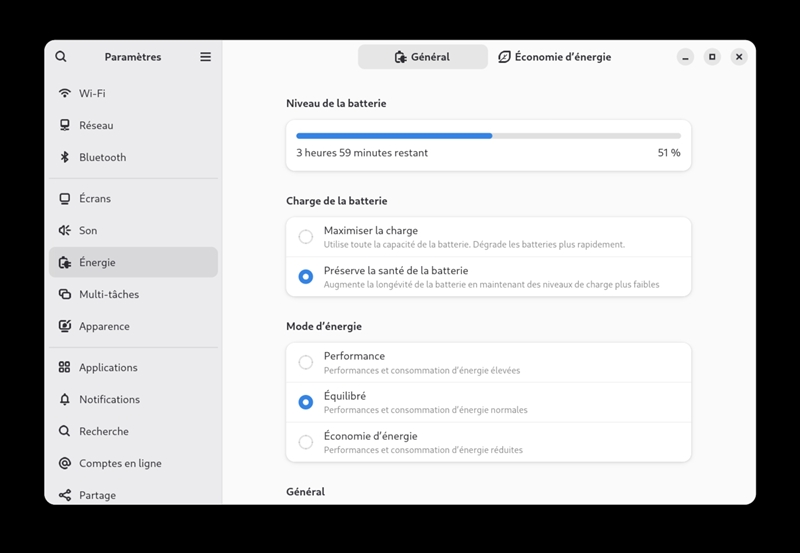
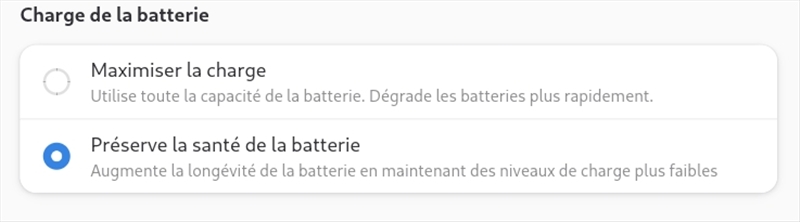
Perso j'utilise Lenovo Commercial Vantage, pour les MÀJ qui ne sont pas couvertes par l'OS, notamment BIOS et firmwares, ou la recalibration de la batterie. https://support.lenovo.com/fr/fr/solutions/hf003321 https://www.reddit.com/r/thinkpad/c [...] necessary/ Il me semble que le réglage du cap à 80% est dedans. Je vois pas l'intérêt de désinstaller l'appli. |
neototem ça va passer ! | Posté le 02-05-2026 à 23:08:00 le réglage du cap à 80% est bien là, mais j'ai eu l'impression que la batterie a baissé sous les 20% sans m'avertir : je vérifierai
--------------- mes ventes mes AV divers |
pascaldeuxzero It's a gift and a curse. | Posté le 10-05-2026 à 20:13:33 Une carte graphique ne produit rien, il faut dissiper tout ce qu'elle suce en chaleur. |
Groody Utilisez MES smileys § | Posté le 21-05-2026 à 11:46:55 Salut !
--------------- Vidéo Concorde Air France | www.kiva.org |
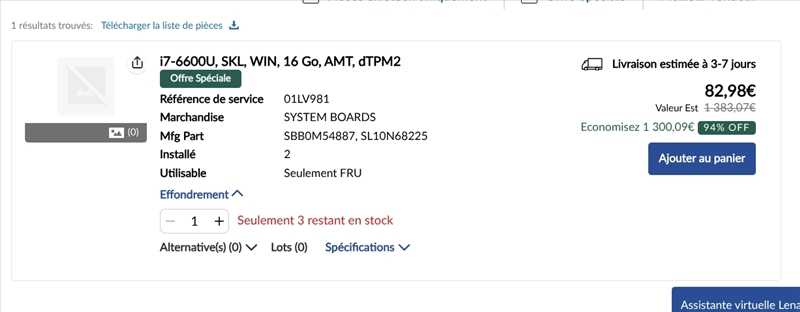
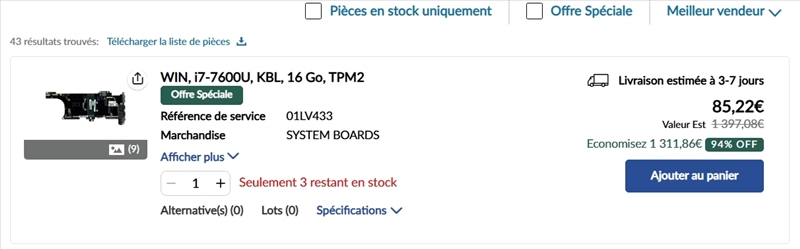
meluor | Posté le 21-05-2026 à 13:32:22 Aliexpress, à comparer avec https://support.lenovo.com/fr/fr/parts-lookup |
Publicité | Posté le |

| Sujets relatifs | |
|---|---|
| ibm thinkpad T22, batterie HS, vitesse CPU | Internet sur les portables |
| Des Thinkpad a prix imbattables ? | Vos pronostics pour les portables en été 2006 : D |
| Portables 1er prix | assembleurs ordi portables |
| Portables avec écran mat en milieu de gamme ? | |
| Plus de sujets relatifs à : [TU] Lenovo Thinkpad X, T, R, W | |


 à tous,


![[:drapal]](https://forum-images.hardware.fr/images/perso/drapal.gif "[:drapal]")



![[:piksou]](https://forum-images.hardware.fr/images/perso/piksou.gif "[:piksou]")
![[:mur-mur:2]](https://forum-images.hardware.fr/images/perso/2/mur-mur.gif "[:mur-mur:2]")
![[:vave:4]](https://forum-images.hardware.fr/images/perso/4/vave.gif "[:vave:4]")